Points clés
The 2026 Verizon DBIR found the human element involved in 62% of breaches, and encryption does nothing about the most ordinary version of it: a sender typing the wrong address into the To field. Organizations protect confidential emails in Microsoft 365 by encrypting sensitive messages and restricting what recipients can do with them.
Mail flow rules and data loss prevention policies can apply both protections automatically. Separate controls cover what encryption cannot reach: human error, compromised accounts and risky forwarding.
From Purview Message Encryption and sensitivity labels to mail flow rules and licensing, this guide sets out the Microsoft 365 options for confidential email. It also covers what those options leave open, and which controls close the rest.
What Makes an Email Confidential, and What Can Go Wrong?
An email is confidential when its contents would cause harm if the wrong person read them. Regulated data is the clearest case: personal data, financial account numbers, health information and legal correspondence.
Confidential mail leaks in transit, through recipients, through senders and through compromised mailboxes. Traffic between servers can be intercepted when a hop is unencrypted, a recipient can forward the message onward, and a sender can address it to the wrong person in the first place. A compromised mailbox is the widest of the four, because it hands an attacker everything the account owner can read.
Which Encryption Options Does Microsoft 365 Offer for Confidential Emails?
Microsoft 365 encrypts at the connection and at the message, the two layers any email encryption approach has to cover. TLS protects the connection between servers, while Purview Message Encryption, Advanced Message Encryption and S/MIME protect the message itself.
Message Encryption Versus Encryption in Transit
Exchange Online encrypts connections automatically, using opportunistic TLS. If the recipient's organization does not support TLS, Exchange sends the message unencrypted unless an admin has configured a connector or mail flow rule that requires it. TLS also encrypts the connection, not the message, and stops applying once mail lands in a mailbox.
Microsoft Purview Message Encryption is built on the Azure Rights Management service and encrypts message content for internal and external recipients, including replies. Users apply it from the Encrypt option in Outlook, and admins through policy. It replaced Office 365 Message Encryption, and Advanced Message Encryption is an add-on layer requiring the base product first.
Encryption controls who can read a message instead of filtering inbound phishing or business email compromise, which separate Microsoft 365 security solutions handle.
Reach, Setup and Licensing Side by Side
The options differ most in who can open the message and how much infrastructure each needs:
Option | Who Can Read | Setup Effort | Licensing |
TLS in transit | Anyone with mailbox access after delivery | None; on by default | Included in Exchange Online |
Purview Message Encryption | Authenticated recipients, any email service | Low; activates with Azure Rights Management | E3, E5, Business Premium, A and G plans |
Advanced Message Encryption | Recipients using the encrypted portal | Moderate; custom branding templates in PowerShell | E5, or add-on for E3 |
S/MIME | Recipients holding the matching private key | High; per-user certificates and PKI | Certificate issuance; no plan tier named |
Advanced Message Encryption adds revocation, expiration, branding templates and portal activity logs, though revocation and expiration work only for external recipients reading mail through the portal with a custom template applied. Each user covered by message encryption needs a license.
How Do Sensitivity Labels and Rights Management Restrict Recipients?
Sensitivity labels attach rights management to a message, letting an organization control whether recipients can forward, copy or print it as well as whether they can read it.
Encrypt-Only Versus Do Not Forward
Do Not Forward encrypts the message and blocks forwarding, copying and printing. In Outlook the Forward button and the Print and Save As options disappear, and recipients cannot add or change recipients.
Encrypt-Only grants recipients every usage right except Save As, Export and Full Control. They can forward, copy and print, and cannot strip the protection. Under either option, unencrypted Office attachments inherit the email's encryption, and that inheritance cannot be turned off.
Label-Based Protection Across Outlook
Sensitivity labels with encryption reach Outlook by several routes, which differ mainly in how much is left to the user: applied manually, set as a default in the label policy, made mandatory before sending, or applied automatically. Manual labeling is included in Microsoft 365 E3 and Business Premium, while auto-labeling requires E5 or equivalent compliance tiers. Service-side auto-labeling for Exchange covers mail in transit rather than mail already in mailboxes.
External recipients without Outlook receive a wrapper message linking to the encrypted message portal. Admins control whether social sign-in and one-time passcodes are permitted, and passcode emails sometimes land in junk, a detail to pass on to recipients in advance.
How Do Mail Flow Rules and DLP Policies Protect Confidential Emails Automatically?
Policy-based protection applies encryption based on content and recipient, which covers confidential mail even when the sender forgets the Encrypt button. Exchange mail flow rules and Microsoft Purview data loss prevention (DLP) policies both do this.
Mail Flow Rules in the Exchange Admin Center
In the Exchange admin center, the path is Mail flow, then Rules, then New. Conditions in a single rule all have to match, and common ones include The recipient is located, set to Outside the organization; The subject or body includes specific words; and Any attachment's content includes specific words.
The action is Modify the message security, then Apply Office 365 Message Encryption and rights protection, followed by a rights management template such as Encrypt or Do Not Forward. The menu label still reads Office 365 even though the product is now Microsoft Purview Message Encryption.
DLP Policies in the Purview Portal
DLP policies detect sensitive information types such as credit card or national identification numbers, warn users with policy tips in Outlook, and can block or encrypt the message. The path runs from the Microsoft Purview portal to Data loss prevention, then Policies, then Create policy, with the Exchange email location selected.
Policies can run in simulation mode before enforcement, with alerts configured per rule. E3 includes DLP for Exchange, while the Outlook oversharing prompt requires E5.
What Do Encryption and Sensitivity Labels Not Stop?
Encryption protects message content from interception and limits recipient actions. It does not check whether the recipient is the right person, or whether the account sending and reading the mail is still under its owner's control.
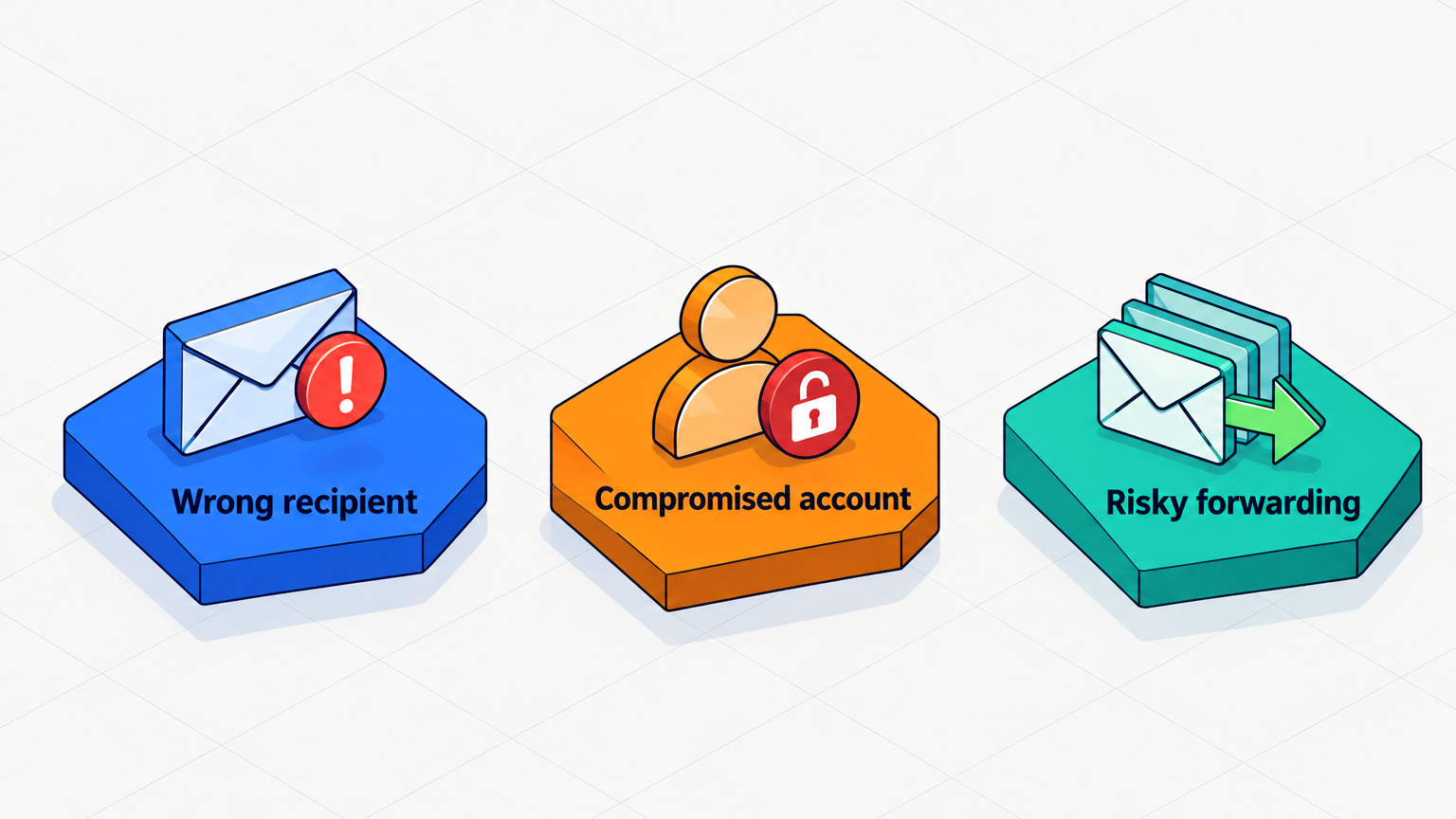
Emails Sent to the Wrong Recipient
An encrypted message sent to the wrong external address is still readable by that address, because the wrong person is now an authenticated recipient. Recipients resolve from entries in the Outlook AutoComplete list, where stale or mistyped entries contribute to accidental data loss.
Native Microsoft 365 controls reduce the risk of misdirected email. The External Recipients MailTip, off by default, warns senders when a message will leave the organization and is enabled with Set-OrganizationConfig -MailTipsExternalRecipientsTipsEnabled $true.
Outlook supports Undo send and deferred delivery, and DLP policy tips flag sensitive content addressed externally. Clearing the AutoComplete list helps, though some Exchange Online suggestions come from Microsoft Search and survive it. Abnormal's Misdirected Email Prevention, in Limited GA on Microsoft 365, is designed to help catch messages addressed to the wrong recipient before delivery.
Compromised Accounts With Access to Protected Mail
Azure Rights Management ties usage rights to the authenticated identity of the issuer and recipients. An attacker signed in as a legitimate user holds that user's rights and can open any encrypted mail the user can, which makes protecting the identity part of protecting the content.
Microsoft recommends multi-factor authentication, risk-based Conditional Access and least-privilege role assignment, and Conditional Access can be applied to the Azure Rights Management service itself. The Rights Management super user feature can decrypt all tenant-encrypted content, which makes it a role worth restricting and monitoring. When compromise is suspected, response covers disabling the account, revoking sessions, resetting the password and removing attacker-added authentication methods and forwarding, all standard steps in account takeover response.
Risky Forwarding Rules and Misconfigurations
Attackers with mailbox access create inbox rules that forward mail to an external address, and users sometimes forward work mail to personal accounts. The outbound spam filter policy defaults to a system-controlled setting whose behavior varies by organization, and Microsoft recommends setting it explicitly to disable forwarding. Remote domain settings and mail flow rules can also block forwarding, and when settings conflict the block typically wins.
For detection, the forwarding rule creation alert policy, the auto-forwarded messages report and audit log searches for inbox rule changes surface what moved. CISA's secure configuration baselines for Microsoft 365 cover Exchange Online, which gives administrators a reference point for which forwarding settings to lock down. Abnormal's Posture Management is designed to compare Microsoft 365 settings against Center for Internet Security benchmarks and surface configuration drift without a manual audit.
What Should a Practical Confidential Email Setup in Microsoft 365 Include?
A working setup runs from classification and policy-applied encryption through forwarding controls, identity protection and monitoring. Each control depends on the one before it, starting with knowing which data needs protection:
Classify confidential data with sensitivity labels, using default or mandatory labeling where the license allows.
Encrypt by policy with mail flow rules for external recipients and DLP policies for sensitive information types, tested in simulation first.
Choose Do Not Forward for content that must not travel further and Encrypt-Only for routine external confidentiality.
Disable external automatic forwarding explicitly in the outbound spam filter policy, with exceptions through remote domains.
Protect identities with multi-factor authentication, Conditional Access and restricted admin roles.
Train users on external MailTips, policy tips, Undo send and checking autocompleted addresses.
Monitor forwarding alerts, mail rule changes, configuration drift and outbound mistakes on a recurring schedule.
Steps one through four rely on licensed Microsoft features, while five through seven depend on identity and monitoring practices that sit outside encryption entirely.
Confidential Email Beyond Encryption
Purview Message Encryption and sensitivity labels protect message content and limit what recipients can do with it, and mail flow rules and DLP policies apply those protections without relying on the sender to remember. What encryption cannot verify is that the recipient is correct, or that the account holding the rights is still under its owner's control. Those two gaps are where multi-factor authentication, Conditional Access, forwarding controls and recipient checks do the work.
Abnormal's Misdirected Email Prevention, in Limited GA on Microsoft 365, is designed to help identify emails addressed to unintended recipients using an organization's historical sending context. Explore Misdirected Email Prevention to see how Abnormal checks recipients before a message leaves.
Frequently Asked Questions
Can external recipients read encrypted Microsoft 365 email without a Microsoft account?
Yes, a Microsoft account is not required. The wrapper message links to a portal where recipients sign in with a Google or Yahoo account or request a one-time passcode by email, while anyone already in Outlook with a Microsoft 365 account reads the message in place. Which of those routes a recipient gets depends on what the admin has allowed.
Does Microsoft 365 encrypt email by default?
Yes, but only in transit. Exchange Online uses opportunistic TLS, which encrypts the connection when the receiving server supports it and falls back to unencrypted delivery when it does not. Protecting the message content itself requires Purview Message Encryption, a sensitivity label or S/MIME.
Which Microsoft 365 plans include message encryption?
Purview Message Encryption is included in Microsoft 365 and Office 365 E3 and E5, Microsoft 365 Business Premium, and several education and government plans. Advanced Message Encryption is included in E5 tiers and available to E3 through compliance add-ons. Plan contents change, which makes current Microsoft service descriptions the reliable reference.
How do you stop users from forwarding confidential emails?
Applying Do Not Forward, directly or through a sensitivity label, removes the Forward option and blocks copying and printing. Mail flow rules or DLP policies can apply that protection automatically based on content or recipient. Setting the outbound spam filter policy to block external automatic forwarding stops inbox rules from sending mail outside the organization.