Scareware is a social engineering attack that uses false security warnings to frighten people into taking actions that benefit an attacker. The message poses as antivirus software, a system alert, or a support agent, but it exists only to manufacture panic.
Distinguishing a false warning from a genuine alert matters because trusting the wrong message can turn a harmless encounter into a costly incident. People reported losing $3.5 billion to imposter scams in 2025, according to the Federal Trade Commission (FTC). Scareware's fake alerts are often the opening move in that kind of fraud.
Key Takeaways
Scareware manufactures a false emergency, then offers the attacker's own remedy as the only way out.
A phone number inside a browser security warning is a strong sign that the alert is fraudulent.
The same fake-alert mechanism feeds tech support scams, remote access abuse, and fake subscription renewals.
Telling a browser-level illusion apart from a genuine system event removes the pressure these attacks depend on.
How Does Scareware Work?
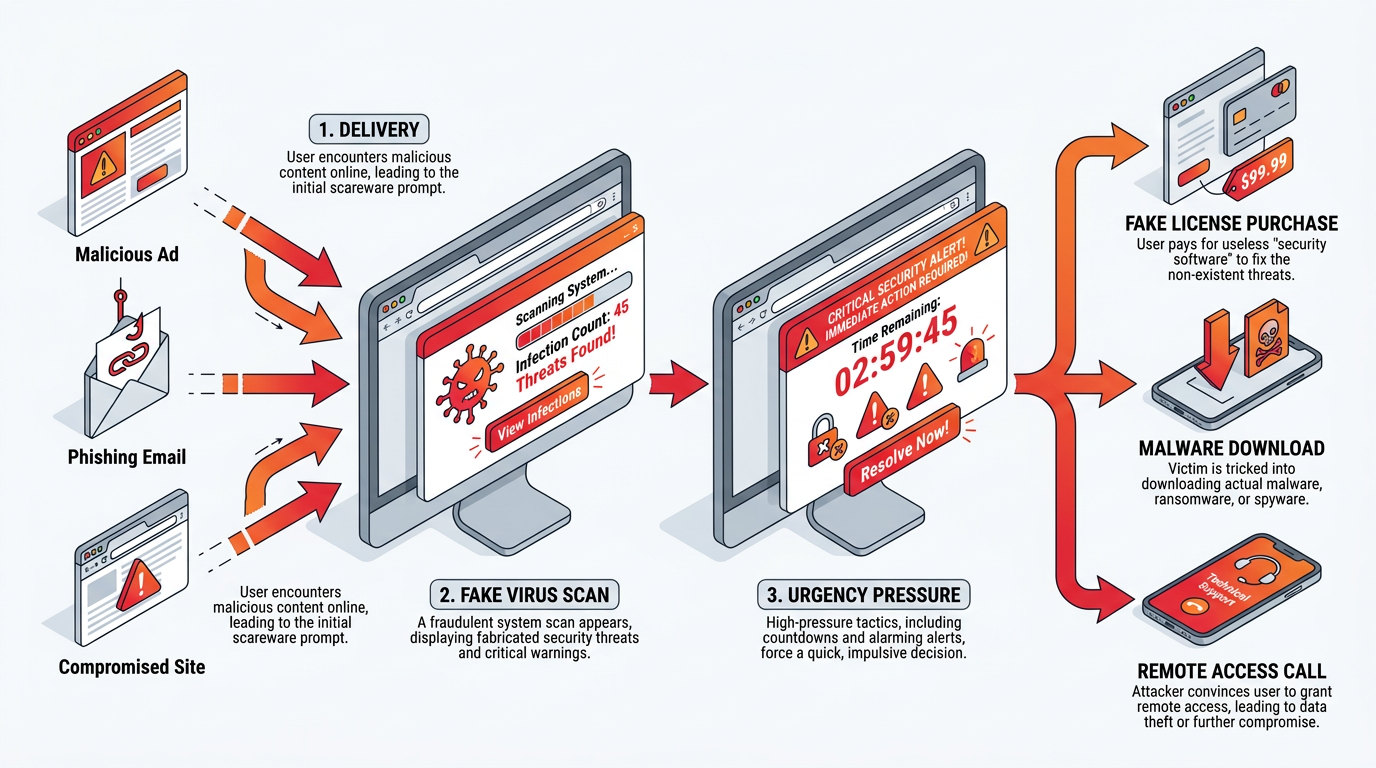
Scareware combines deceptive delivery with pressure to accept the attacker's proposed solution to a fabricated security problem.
The fake alert reaches the victim through a malicious ad, a compromised site, a sponsored search result, a phishing email with a link, or an unsolicited fraudulent phone call claiming the device is sending error messages. Whatever the route, the page or program simulates a virus scan, displays fabricated infections, and adopts the colors and logos of a major technology company or security provider. Some versions mimic operating system notifications, such as "The device has detected a problem." The window may resist closing or reappear if dismissed.
Then comes the pressure. Messages such as "Immediate action required!" and pressure from countdown timers push the victim to act before thinking, while renewal variants falsely claim the company already charged hundreds of dollars. The payoff may be a fake license purchase or a download of malware disguised as protection. It may also be a phone call that gives the scammer remote access. During a remote session, the scammer "finds" expired licenses or infections and collects a fee by wire transfer, prepaid card, gift card, cryptocurrency, or payment app.
Why Does Scareware Work on People?
Scareware works because it combines fear, urgency, borrowed authority, and familiarity with routine security prompts.
Fear and urgency arrive together. A message that a device is infected triggers a threat response, and a countdown timer or a "call within 24 hours" deadline denies the victim the pause that would expose the fraud. Protection Motivation Theory holds that a fear appeal changes behavior when the person believes the offered response will work. Scareware pulls that lever by supplying both the threat and the only visible fix.
Authority does the rest. A pop-up carrying a familiar corporate logo, or a caller who says they work for a major company, borrows trust the attacker never earned. Would a warning styled exactly like the one your antivirus already shows every week make you pause before clicking? A fake government badge number later in the call extends that borrowed trust further.
Habituation makes the setup worse. Repeated exposure can sharply reduce a person's visual attention to security warnings and cause warning fatigue. People who have learned to dismiss genuine prompts without reading are poorly equipped to evaluate a loud, unfamiliar alert. Older adults are disproportionately targeted, and fake security alerts are a standard tactic in online impersonation fraud.
Types of Scareware
Scareware takes at least eleven recognizable forms, and most campaigns combine two or more.
Variant | Where It Appears | What It Asks For
|
|---|---|---|
Rogue Antivirus Software | Downloadable desktop security suite | A license fee to remove fabricated infections |
Browser Pop-Up Virus Alert | Web page styled as a system warning | A download or purchase |
Browser Locker | Full-screen dialogs with sound and visual effects | Payment or a call to escape the tab |
Tech Support Scam Pop-Up | Alert centered on a phone number | A call leading to remote access and a fee |
Fake Software Update Prompt | Compromised sites | An "update" that installs malware backdoor access, often followed by ransomware |
Fake Law Enforcement Lock Screen | Full-screen message claiming the device detected illegal content | An immediate fine |
Fake Encryption Extortion | Alert falsely claiming files are encrypted | A ransom for files the attacker never locked |
Mobile Scareware App | Fake app pushed through sideloading (installing an app outside an official app store) or ads | An "update" with embedded malicious code |
Fake Subscription Renewal Email | Notice of a large auto-renewal charge | A callback to dispute the charge |
Phishing Link to a Scam Site | Email redirecting to a scam page | A remote access tool download |
Malvertising-Delivered Alert | Malicious ads on trusted sites | A click that bypasses browser protections |
The format changes across devices and channels, but each variant presents a false problem and directs the victim toward an attacker-controlled action.
Signs a Security Alert Is Scareware
A fraudulent alert usually reveals itself through its location, payment demands, technical impossibilities, or pressure tactics.
The FTC, in an April 2025 consumer alert, puts the first rule plainly: "security pop-up warnings from real tech companies will never ask you to call a phone number."
Eleven further signs separate fabricated warnings from genuine ones:
A Browser Tab Posing as the Operating System: A security screen inside a browser does not prove a system event.
A Window That Will Not Close: Scareware may disable the close button, block Escape, or reopen itself.
Audio Alarms or Recorded Voices: Sirens or spoken browser instructions are strong warning signs.
Countdown Timers and Deadline Language: Fabricated deadlines exist to prevent reflection, not support remediation.
Payment in Gift Cards, Wire Transfer, or Cryptocurrency: Legitimate software support does not normally demand these methods.
A Request for Remote Access: Scareware campaigns impersonate organizations to install remote monitoring tools.
An Instant Scan With an Absurd Result: A page that "scanned" a computer in two seconds did no device-wide scanning.
Spelling Errors and Amateur Design: Errors, awkward phrasing, and poor localization can expose a fabricated message.
A Familiar Logo on Software That Is Not Installed: The alert likely came from a website.
An Alert Nobody Asked For: A web page cannot perform an instant device-wide scan.
A Download Button Inside the Alert: An unexpected alert may offer malware disguised as protection.
Recognizing even one of these signs is often enough to break the illusion and interrupt the attacker's script before any money changes hands or malware is installed. Training yourself to spot them turns a moment of panic into a routine act of verification.
Scareware in the Real World
Real-world cases show that scareware has persisted by adapting its delivery methods while preserving the same underlying deception.
The Federal Bureau of Investigation (FBI) Internet Crime Complaint Center (IC3) 2025 Annual Report recorded $2.1 billion in losses to tech and customer support fraud in 2025, the third-highest total of any crime type. In 2008, the FTC took action against operators whose online ads ran fake computer scans and sold fraudulent security products as the cure. The litigation ended in 2012 with a judgment (documented in the FTC's 2012 press release) permanently barring one operator from marketing computer security software. June 2011 also brought Operation Trident Tribunal, a sweep led by the Department of Justice (DOJ) and FBI that seized fake-antivirus servers in eight countries. Another campaign used search engine poisoning to push desktop users onto fake infection pages that harvested credit card numbers.
Enforcement has continued into the present. Two technology support operators used misleading ads and fake operating system pop-ups to sell repair services for nonexistent viruses, and the FTC sent refunds to consumers totaling more than $25.5 million in March 2025 under a settlement barring the companies from misrepresenting security problems. Another operation used pop-ups styled as operating system alerts and sometimes claimed to represent major technology companies before reaching its refund stage in November 2023.
Scareware vs. Related Terms and Common Misconceptions
Scareware overlaps with several neighboring categories, but its defining feature is a deceptive warning designed to create fear, even when the broader campaign causes real harm.
Neighboring Threats That Differ From Scareware
The boundary between scareware and related threats depends on what the attack actually does. Some categories describe the harm, while others describe the delivery channel or the broader fraud surrounding the alert.
Ransomware: Ransomware blocks access to data and demands payment to restore it; scareware relies on a deceptive fear-based claim, although the broader campaign may later install malware.
Rogue Security Software: This is the broader category of fake security products; scareware is the fear-driven subset impersonating antivirus tools.
Adware: Adware forces ads and redirects into the browser and can carry a scareware pop-up, but it is not itself the fraud.
Tech Support Scams: These are the wider fraud schemes. They usually open with scareware, and a fake government agent sometimes appears later.
Malvertising: This is a delivery mechanism involving malicious ads inside legitimate ad networks that may carry scareware pages or other malware.
Browser Lockers: These are a scareware technique that fakes a lockout using browser features alone, without installing anything.
Phishing: Phishing impersonates an identity to steal credentials; scareware manufactures an emergency to extract payment.
These categories can overlap within one incident. A phishing message may lead to a browser locker, which then opens a tech support scam and ultimately delivers real malware. The original false warning remains scareware even when the campaign expands into another attack type.
Common Beliefs That Keep Scareware Working
Misconceptions make fake alerts more convincing because they cause people to treat a browser display as proof of a device-level event. Correcting those beliefs makes the attack easier to evaluate.
Scareware Always Installs Malware: Many campaigns take a card number on a scam site or sell software that only slows the machine. The false warning remains the central tactic even when nothing is installed.
Seeing a Pop-Up Proves Infection: Scammers buy ads and sponsored links, so a clean machine can display one on a bad website. The page's appearance does not establish what is happening elsewhere on the device.
Scareware Only Affects One Operating System: Browser-based attacks can appear on desktop computers, tablets, and phones, while fake mobile security apps spread through sideloading.
A Lock Screen Means the Computer Is Locked: A browser locker often uses full-screen mode rather than a device-level lock. Restarting usually clears it, although browser session restoration can reopen the page.
Scareware Only Arrives as a Pop-Up: Cold calls, renewal emails, phishing links, and search ads deliver the same script.
The alert reveals little about the device's actual condition. Its origin and behavior are more useful than its logo or claimed infection count. So is the action it requests. A user can verify a genuine notification by opening the known security application independently and reviewing its history. By contrast, a warning confined to a browser tab, especially one demanding a call, payment, download, or remote access, is browser content rather than proof of a system scan.
How to Prevent and Respond to Scareware
To prevent and respond to scareware, reduce deceptive prompts and independently verify any claimed problem before interacting with the alert.
Preventive Habits and Controls
Preventive measures work best when they address both the delivery channel and the emotional pressure behind the alert. Technical controls reduce exposure, while verification habits can stop a convincing message from becoming an incident.
Automatic Updates: Keeping the operating system, browser, and security software current removes outdated components malicious ads target.
An Ad Blocker: Blocking ads reduces exposure to malvertising-driven scareware pages but does not eliminate the route.
Pop-Up Blocking: A browser configured to suppress pop-ups stops many basic versions before they render.
Notification Permission Review: Periodically reviewing site notification permissions and revoking unfamiliar ones prevents repeat alerts.
Official Download Sources Only: Security software belongs on the vendor's own site or an official app store, never in an ad, pop-up, or email link.
A Deliberate Pause: Asking someone else before reacting to an alarming alert defeats the urgency the attack relies on.
Network Filtering: A web proxy or protective Domain Name System (DNS) resolver can block known scam domains before a page loads.
Organizational Controls: File restrictions stop high-risk downloads, email filtering catches renewal notices, and security awareness training can teach users to distrust browser warnings carrying phone numbers.
Together, these controls reduce opportunities for the alert to appear and make it less likely that someone will trust it when it does.
Response Steps After a Fake Alert
The response should separate the device from the deceptive page without using controls, contact details, or downloads supplied by the alert.
The safest first move is to click nothing inside the alert, including the close button.
Force-closing the browser with a keyboard shortcut or task manager ends most alerts. Restarting the device usually clears a browser locker, but session restoration may reopen the page.
The embedded phone number should remain uncalled, and anyone who telephones afterward should receive no remote access.
If the reader shared payment or card details, contacting the bank or card issuer immediately and disputing the charge can limit the damage.
A subscription notice can be verified through contact details on the company's official website rather than those in the message.
An updated scan, cache clearing, removal of unfamiliar extensions and notification permissions, removal of unfamiliar remote access tools, and reports to the FTC and FBI can close out the incident.
If the alert only appeared and received no interaction, closing the page, avoiding related phishing links, and checking the installed security software will usually resolve the event.
Seeing Through the Alarm
Fake antivirus and browser lockers are two of scareware's many costumes. Renewal emails with a callback number use the same script: the attacker invents a threat and removes the time to think before selling the cure. A phone number inside a warning provides strong evidence of fraud, as do gift card demands and a window that refuses to close. Closing the browser and independently checking the installed security software can stop the attack before it progresses.
Frequently Asked Questions
How Do I Get Rid of Scareware Pop-Ups?
Useful steps include force-closing the browser without clicking the alert, revoking unfamiliar notification permissions, clearing the cache, removing unrecognized extensions, and running an updated scan with installed security software.
Can a Fake Security Alert Scan Local Files?
A web page cannot complete an instant device-wide scan simply because it appeared in a browser. Trusted security software installed on the device is the appropriate tool for checking local files.
What Should I Do After Granting Remote Access?
Useful steps include ending the session, disconnecting the device from the network, removing unfamiliar remote access tools, and running an updated scan. The response can also include changing exposed passwords from another trusted device and contacting financial institutions if the reader shared payment information.
Is Scareware Illegal?
Scareware commonly involves illegal conduct, including deceptive advertising or fraud. The specific offenses and penalties depend on the jurisdiction and what the operator did. Enforcement outcomes have included marketing bans, refunds, international server seizures, and prison sentences.
Can Scareware Affect Phones and Desktop Computers?
Yes. Any device with a browser can display a fake alert. Fake antivirus campaigns target desktop systems directly, while sideloaded security apps can affect mobile devices.