Key Insights
A 2025 USENIX Security study of 16 large language models found that at least 5.2% of the packages commercial models recommended did not exist, rising to 21.7% for open-source models. An agent that installs what it suggests turns that output into a supply chain problem for Cursor security, the admin-enforced settings that decide where code is sent, what the agent may run without approval, and which servers it may reach.
This guide approaches Cursor security as an administrator's problem rather than each developer's, since the controls that hold are the ones enforced for everyone. It follows the editor from Privacy Mode through agent run modes, MCP allowlists and identity settings to the exposure those settings leave behind. Each setting ties back to Cursor's documentation and advisories and to OWASP's Top 10 for Large Language Model (LLM) Applications, and separates what the product controls from what the organization controls.
Is Cursor Safe to Use at Work?
Yes, Cursor is safe to approve for most engineering teams with Privacy Mode enforced and agent, MCP and identity settings configured. Cursor's privacy and data governance documentation says data leaves the machine through model requests and Cloud Agents, and that Cloud Agents alone require Cursor to store code. Prompts and code context pass through Cursor's backend to providers such as OpenAI, Anthropic and Google, listed as subprocessors.
Privacy Mode blocks training on code, and zero-data-retention agreements cover providers. Provider-retention models are off by default and need admin approval, and providers may keep prompts triggering abuse classifiers.
Cursor's security page, last updated August 25, 2026, lists AIUC-1, ISO/IEC 27001:2022, ISO/IEC 42001:2023 certifications, and a SOC 2 Type II attestation. It also commits to at least annual third-party penetration testing. Teams running vendor security reviews can request the certificates and reports at trust.cursor.com.
What Are the Main Security Risks of Using Cursor?
Cursor's main risks come from code sent to remote models and from an agent that acts with the developer's own access. Each risk is documented in Cursor's published Common Vulnerabilities and Exposures (CVE) advisories or in OWASP guidance for LLM applications:
Code Sent to Model Providers: Without Privacy Mode, Cursor may store prompts, code snippets and editor actions and train on them.
Agent Terminal Commands: Before version 1.3, CVE-2025-54131 let backticks or $(cmd) bypass the auto-run allowlist. Before version 2.3, CVE-2026-22708 let shell built-ins run without appearing in the allowlist.
Untrusted MCP Servers and Extensions: Until version 1.3, MCPoison (CVE-2025-54136) let an attacker replace an approved MCP configuration with a malicious command without triggering a new prompt.
Secrets in Context: Keys and .env values can reach prompts through file reads or terminal output. The 2026 edition of OWASP's Top 10 for LLM Applications ranks this pattern second, as LLM02 Sensitive Information Disclosure.
Prompt Injection Through Repository Content: CurXecute (CVE-2025-54135) used indirect prompt injection to make the agent create .cursor/mcp.json and run code, with the fix in version 1.3.9.
Insecure Generated Code: Unvalidated output falls under Improper Output Handling, which the same list ranks tenth as LLM10. The package hallucination rates cited earlier give attackers names they can register and wait for a developer to install.
All four CVEs were fixed in released versions of Cursor, and any install that lags behind those versions stays exposed.
Which Cursor Security Settings Should You Configure?
The settings that matter cover privacy and data, agent execution, extensions and MCP servers, identity and access, and monitoring and review. Teams plans let admins enforce Privacy Mode team-wide and require SSO. Cloud Agent retention caps, Run Mode policies, the Repository Blocklist, MCP Configuration, team hooks, System for Cross-domain Identity Management (SCIM) provisioning, audit logs and OpenTelemetry Export require Enterprise. Setting names follow Cursor's documentation as of November 2026, but Cursor renames settings often.
Privacy and Data Settings
Admins should enforce Privacy Mode rather than leave it to each developer, enabling it under Settings in the team dashboard and turning enforcement on. Enterprise has it on by default.
Retention is the next decision, and on Enterprise it is set separately for each kind of stored data. Cloud Agent retention caps conversation data at either Indefinite or 90 days, environment snapshots expire after 30 days of inactivity, and shared transcript retention stays off unless an admin turns it on.
A .cursorignore file uses .gitignore syntax and blocks listed files from Agent, Tab, and @ mentions, as Cursor's ignore file reference describes. The same reference says the terminal and MCP tools the agent uses cannot block access to files governed by .cursorignore, and that complete protection is not guaranteed. The global ignore list in user settings starts empty, so developers need to add .env, key and credential patterns themselves. The Enterprise Repository Blocklist accepts file patterns and applies to the editor and CLI, but not to Cloud Agents, Automations or Bugbot.
Agent Execution Settings
Run Mode, which older guides call Auto-Run, governs what the agent may execute, offering Auto-review, Allowlist and Run Everything. Auto-review has been the default since Cursor 3.6, running allowlisted calls directly, sandboxing shell commands where it can and sending everything else to a classifier. Ask Every Time was deprecated in 3.5, though an empty Allowlist produces the same behavior for teams that want it. Run Everything uses neither a classifier nor a sandboxed execution environment, and Enterprise teams can remove it through Run Mode policies in the dashboard.
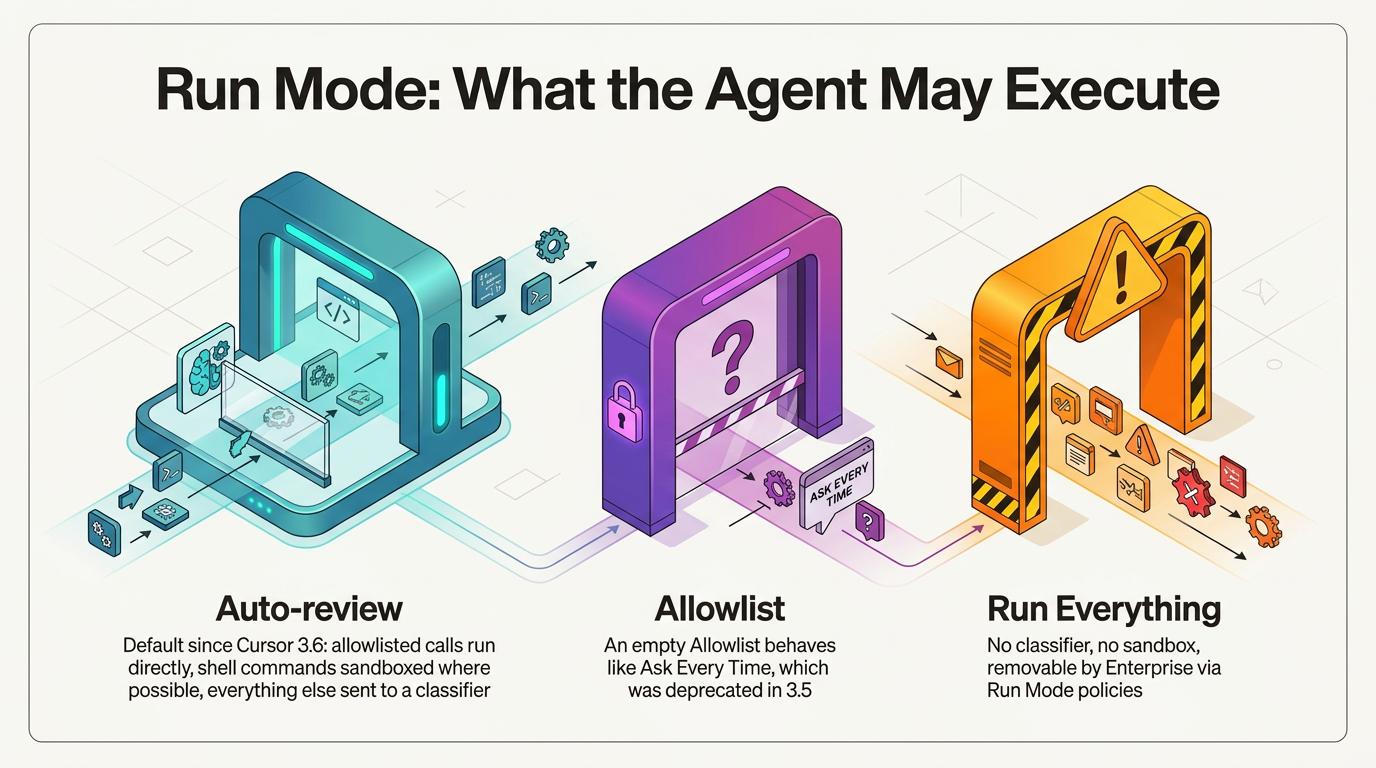
The Run Modes documentation lists File-Deletion, External-File and Browser Protection. Cursor's LLM safety and controls documentation adds .cursor Directory Protection, an Enterprise-only setting requiring approval before agents modify files in .cursor/, including rules and settings files. The sandbox uses Seatbelt on macOS, Landlock on Linux with Bubblewrap as a fallback, and WSL2 on Windows, and it blocks network access by default.
Hooks add scripted checks that limit excessive agency in agents, with a beforeShellExecution or beforeReadFile hook denying the action when it exits with code 2. Enterprise admins can sync team hooks from the dashboard so the same checks apply to everyone.
Extension and MCP Server Settings
Enterprise MCP control sits under Team Settings > MCP Configuration. Admins approve each server as a command or URL entry, limit what it can do with server:tool entries and give it a network policy of Allow all, Allowlist, Deny all or No sandbox. Approving a server does not install it. Admin settings replace a user's permissions.json allowlist rather than merging with it, and the team list is the only one that applies.
Agents ask for approval before using MCP tools by default, and since version 1.3, a change to an existing server entry triggers that prompt again. On the extension side, the AllowedExtensions policy sets extensions.allowed, the marketplace proxy runs automated malware and supply-chain analysis before serving downloads, and Allow Local Plugin Imports stays off by default on Enterprise.
Identity and Access Settings
Teams and Enterprise both support Security Assertion Markup Language (SAML) 2.0 SSO with providers including Okta, Microsoft Entra and Google Workspace, and once a domain is verified and connected, users must sign in that way. System for Cross-domain Identity Management (SCIM) 2.0 provisioning is Enterprise-only and depends on SSO being in place, which is what makes offboarding automatic, since unassigning a user in the identity provider removes them from Cursor.
The remaining gap is the account a developer brings themselves. AllowedTeamId logs out any account not on its list and deploys through mobile device management (MDM), using Group Policy on Windows, configuration profiles on macOS or policy files on Linux. Cursor's own documentation gives the reason, which is that personal accounts might not have Privacy Mode enabled, and Enterprise admins can close the related route by restricting personal API keys under Team Settings → Models.
Monitoring and Review Settings
Enterprise separates the record of who changed what from the record of how the tool is used, and each answers a different question:
Audit Logs: Records cover sign-ins, membership, roles, API keys, settings and integrations, along with the actor, IP address and time, but not prompts or generated code.
Export: The Admin API returns up to 30 days at a time, and events can stream to Splunk, Sumo Logic, an HTTPS webhook or S3 for security information and event management (SIEM).
Telemetry: OpenTelemetry Export, also Enterprise-only, sends token, tool call and cost metrics to the team's own collector.
Neither record captures what the agent was asked to do, which is why review of the code itself still matters. Cursor's Security Review, available on Teams and Enterprise plans, pairs a Security Reviewer that checks each pull request for vulnerabilities, auth regressions, agent tool auto-approvals and prompt injection with a Vulnerability Scanner that runs scheduled scans. Both agents require Cloud Agents.
What Do Cursor's Settings Not Cover?
Cursor's settings govern only Cursor's own agent and editor. These exposures sit outside that boundary and need controls the organization runs itself:
Outbound Connections Outside the Sandbox: Network rules apply only to sandboxed shell commands. Run Everything skips the sandbox, and local MCP servers can run with no sandbox.
Operating-System-Level Isolation: Read Access defaults to System, which lets the agent read files outside the workspace without approval. The sandbox limits writes to the workspace and blocks network access until network settings open it, but it doesn't restrict reads. Running Cursor in a restricted OS account, dev container or virtual machine limits what any agent can reach.
Other AI Tools on the Same Machine: .cursorignore and MCP allowlists do not bind other assistants.
Bring-Your-Own-Key (BYOK) and Custom Models: BYOK requests still pass through Cursor's backend, but Cursor's ZDR agreements no longer apply and US data residency is unsupported.
Personal Accounts: AllowedTeamId works only on MDM-managed devices. A personal account on a home machine falls outside team policy and audit logs.
Review of Generated Code: Static application security testing (SAST), software composition analysis (SCA), and secret scanning in CI catch insecure patterns, leaked keys and typosquatted packages.
These gaps map to endpoint, network and pipeline controls the organization already owns, and an AI security policy can assign that shared responsibility.
What Practices Keep Cursor Use Secure?
Cursor use stays secure when its settings sit inside engineering controls the team already runs. Each practice has a clear owner:
Code Review for Generated Code: Agent-written changes go through the same pull request review and CI checks as human code.
Secrets Management: Secrets live in a vault and reach processes at runtime. For Cloud Agents, Cursor's Runtime Secrets keep values out of transcripts and commits.
Least Privilege: Developers run Cursor without standing production credentials, and agents receive task-scoped tokens.
An Approved MCP List: Security reviews each server's source, tools and network needs before allowlisting it.
Short Developer Training: A brief session covers Run Modes, .cursorignore limits and prompt injection.
Each of these sits outside Cursor, beyond the reach of a renamed setting or a changed default. Abnormal runs Cursor in an enterprise codebase with those controls in place, putting agent-written changes through human review and automated scanning before they merge.
The controls still depend on developers following them. AI Employee Guardrails, currently in private preview, applies policy to AI use as it happens and logs that activity for review.
Enforced Settings and Clear Practices Make Cursor Safe to Approve
Cursor is safe to approve when Privacy Mode is enforced, agents run in Auto-review or a sandboxed Allowlist, MCP servers come from an admin list, and SSO and SCIM tie use to managed identities. Endpoint, network and generated-code exposure still needs vaulted secrets, restricted accounts and CI scanning.
Abnormal's AI Employee Guardrails, part of the AI Security suite and currently in private preview, is designed to give policy-based control over how employees use AI tools, guiding or blocking risky actions and logging activity for review. Explore AI Employee Guardrails to see how that control works across the tools developers already run.
Frequently Asked Questions
Does Cursor train on your code?
No, not when Privacy Mode is on. Cursor's privacy and data governance docs say that in Privacy Mode, neither Cursor nor its model providers train on your code, and zero-data-retention agreements back that commitment. With Privacy Mode off, Cursor may store and train on prompts, code snippets and editor actions. Teams plans turn it on by default.
What can a security reviewer get from Cursor's Trust Center?
Reviewers get a SOC 2 Type 2 attestation report, SOC 2 bridge letter, ISO 27001 and ISO/IEC 42001 certificates, an ISO Statement of Applicability, an AIUC-1 certificate, penetration test reports with a pentest findings response, and a security questionnaire. Reviewers can request access at trust.cursor.com. These attest to Cursor's own controls, not a team's Privacy Mode or Run Mode enforcement.
Can Cursor run commands on your machine?
Yes, Cursor's agent runs terminal commands under Run Mode, which offers Auto-review, Allowlist or Run Everything. Auto-review is the default and sandboxes shell commands when it can, using Seatbelt on macOS, Landlock on Linux and WSL2 on Windows. Cursor calls allowlists best-effort. Teams should pair them with hooks and sandboxing.
Is Cursor SOC 2 compliant?
Yes, Cursor's security page, last updated August 25, 2026, states that Cursor holds a SOC 2 Type II attestation alongside ISO/IEC 27001:2022, ISO/IEC 42001:2023 and AIUC-1 certifications. Cursor commits to third-party penetration testing at least once a year. Buyers can request the reports through its Trust Center at trust.cursor.com.
How do you control MCP servers in Cursor?
Enterprise admins approve servers under Team Settings > MCP Configuration. Each server is added by command or URL; its tools are limited to entries such as server:tool, and it gets its own network policy. By default, the agent asks for approval before it uses an MCP tool, and it asks again whenever a server's configuration changes.